Zendesk Support/Talk Query authentication guide🔗
Overview🔗
This is a step-by-step guide to creating an OAuth entry, acquiring credentials and authorizing the Zendesk Support Query and/or Zendesk Talk Query components for use in Matillion ETL.
Note
- The Zendesk Support Query and Zendesk Talk Query components use API tokens or an OAuth for third-party authentication. This guide will only explain the OAuth method.
- While component properties may differ between Cloud Data Warehouses, the authentication process remains the same.
Creating an OAuth entry in Matillion ETL🔗
-
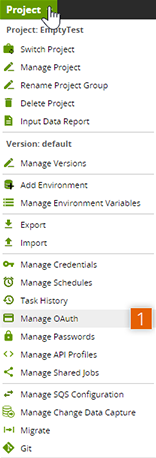
In Matillion ETL, on the top left of the screen, click Project → Manage OAuth.
Note
If a Zendesk Support Query or Zendesk Talk Query component has already been added to an Orchestration Job, the Manage OAuth dialog may also be accessed using the following method:
- Click the component icon to open the Properties panel at the bottom of the screen.
- Then, click ... next to the Authentication Method input.
- Select OAuth from the drop-down in the dialog and click OK.
- The Authentication input will now appear on the list of properties. Click ... next to it, and finally click Manage in the dialog.
-
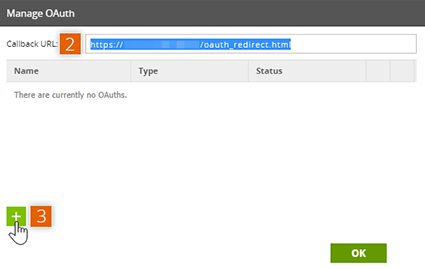
Copy the Callback URL in the field at the top of the dialog as this will be required in Acquiring third-party credentials.
-
Click + in the bottom left of the dialog to open the Create OAuth Entry dialog.
-
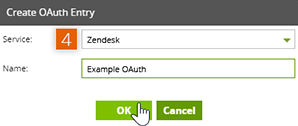
Click the Service drop-down and select Zendesk. Then, provide a name for the OAuth in the Name field and click OK.
-
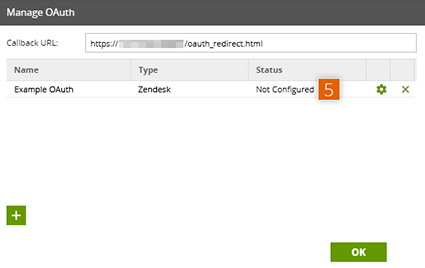
On returning to the Manage OAuth dialog, check the list of OAuths to ensure the new entry is listed.
Note
This entry is Not Configured. Configuration of the OAuth entry will be discussed in Authorizing for use in Matillion ETL.
Acquiring third-party credentials🔗
-
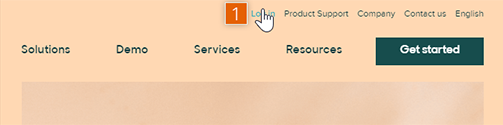
Navigate to the Zendesk website and click Sign In on the right above the header.
-
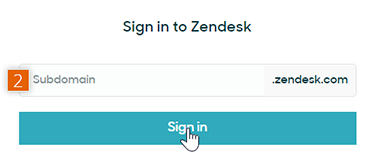
On the next screen, enter the subdomain associated with the account in the field provided and click Sign In. Please make a note of the subdomain, as it will be required later in Authorizing for use in Matillion ETL. The browser will then redirect to a login screen. Enter valid login credentials for the account associated with the subdomain to continue.
-
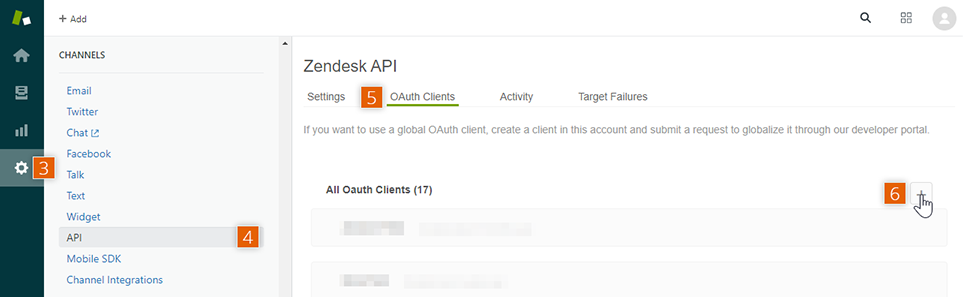
From the Zendesk dashboard, click ⚙ on the left side to open the ADMIN HOME page.
- Scroll down the menu on the left and click CHANNELS → API.
- In the Zendesk API dialog, click OAuth Clients on the menu at the top.
-
Click the + on the far right, at the top of the All OAuth Clients list.
-
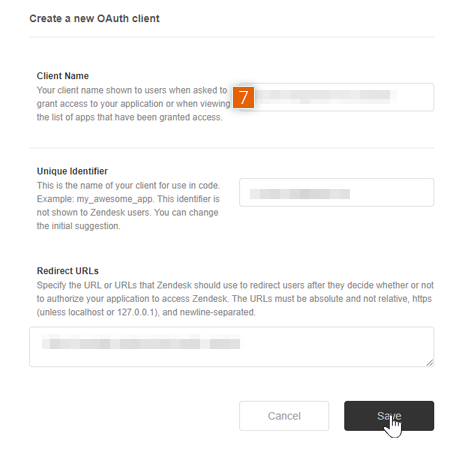
In the Create a new OAuth client dialog, provide details for the following fields:
- Client Name: provide a name for the app
- Unique Identifier: provide a client name to be used in code; it will be required later in Authorizing for use in Matillion ETL
- Redirect URLs: paste the Callback URL (copied from the Manage OAuth dialog in Matillion ETL earlier), then click Save
-
A prompt will then offer a reminder to Please store the secret that will appear, before refreshing the page. A field entitled Secret will now have appeared under the Redirect URLs field. Copy the code from the Secret as it will be required in Authorizing for use in Matillion ETL.
Note
- Make sure to copy the Secret right away as it will not appear again after saving or leaving the page.
- Additionally, when copying the codes, some browsers may add a space to the end of the string. Watch out for this as it will cause the credentials to fail.

Authorizing for use in Matillion ETL🔗
-
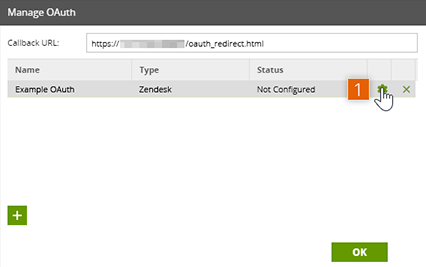
Return to the Manage OAuth dialog in Matillion ETL and click ⚙ next to the previously created OAuth entry. This will open the Configure OAuth dialog.
-
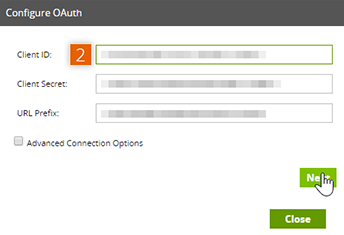
Using the codes copied from the Zendesk website earlier, provide details for the following fields:
- Client ID: enter the Unique Identifier
- Client Secret: enter the Secret
- URL Prefix: enter the account subdomain, then click Next
-
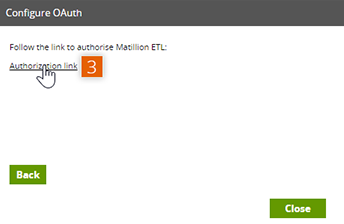
The next dialog will have an Authorization link. Click the link to authorize Matillion ETL to use the acquired credentials.
-
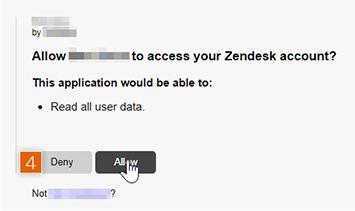
The browser will then redirect to a screen requesting access to the associated Zendesk account. Click Allow to confirm.
-
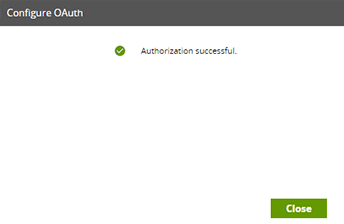
If all is successful, the browser will return to Matillion ETL with a dialog stating, "Authorization Successful".