Manage OAuth🔗
When importing data into a table from third-party services, it's necessary to use OAuth as the authentication method. Matillion ETL streamlines the OAuth setup for all OAuth APIs to make this process as easy as possible. Matillion ETL supports OAuth v2.0 for most connectors, though some connectors may use earlier versions.
This page is a generalized method of creating and configuring an OAuth entry through Manage OAuth. We recommend searching for your specific third-party authentication guide on this site.
Setting up an OAuth entry🔗
-
Click Project → Manage OAuth.
Note
If a connector has already been added to an Orchestration Job, the Manage OAuth dialog may also be accessed using the following method:
- Click the connector icon to open the Properties panel.
- Click the three dots ... next to the Authentication input, and finally click Manage in the pop-up dialog.
-
Copy your Matillion ETL instance Callback URL. You typically need this value when acquiring third-party credentials.
Note
A number of third-party services require a callback URL to be of format
HTTPSrather thanHTTP. -
Click + to add a new OAuth entry.
-
In Add OAuth Entry, provide a descriptive name for your OAuth entry and then select your service from the drop-down. Click OK.
Note
If you're creating an OAuth entry to authenticate an API Query Profile or API Extract using third-party authentication, select API as the service.
-
Once you've created your OAuth entry and returned to the Manage OAuth dialog, confirm that your OAuth entry exists. Its status should read
Not Configured. Click the settings button. -
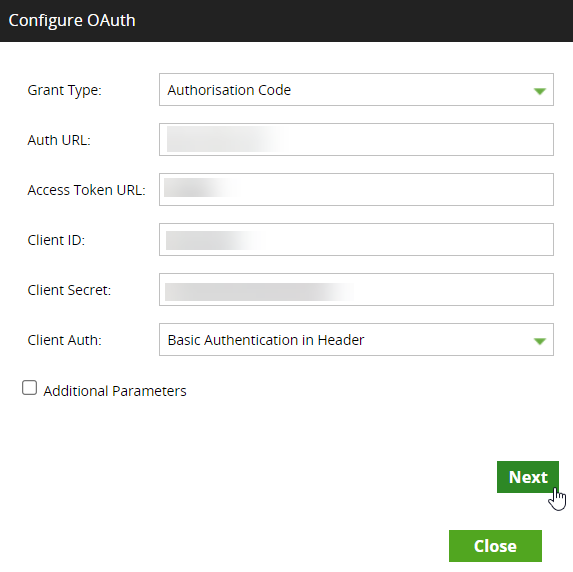
Clicking the settings button opens the Configure OAuth dialog. The fields in this dialog must be completed to attempt to authenticate Matillion ETL with your third-party service. Use the specific authentication guide for your third-party connector to learn how to acquire the specific credentials (for example, client ID and client secret).
Note
For authenticating an API Query profile, you will need a Client ID, Client Secret, Auth URL, and Access Token URL.
-
Once you complete the Configure OAuth fields, click Next.
- Click Authorization link. This action will redirect you to a login page of your third-party service, where you will be asked to confirm the connection between Matillion ETL and the third-party service.
If the authentication process succeeds, you will be redirected to Matillion ETL and the Configure OAuth dialog will state Authorization successful.
Storing an OAuth entry in a secret manager🔗
By default, Matillion ETL stores OAuth entries locally on the instance. You can instead store them in a secret manager—AWS Secrets Manager, Azure Key Vault, or GCP Secret Manager—so that the credentials are managed outside Matillion ETL.
Note
Support for Azure Key Vault and GCP Secret Manager was added in version 1.80.15. In earlier versions, only AWS Secrets Manager secrets are available.
Prerequisites🔗
Before you can store an OAuth entry in a secret manager, you must:
- Enable the
OAUTH_SECRET_MANAGERSoptional feature. Click Admin → Manage Optional Features, selectOAUTH_SECRET_MANAGERS, and click OK. Restart the Matillion ETL server for the change to take effect. For more information, read Manage optional features. - Connect Matillion ETL to your secret manager, as described in Integrating Matillion ETL with secret managers.
Store the OAuth entry🔗
- Click Project → Manage OAuth.
- Click the settings button next to your OAuth entry to open the Configure OAuth dialog.
- In Save Location, select Secret Manager. The default is Locally on the instance.
- In Secret Manager, select the secret manager that you connected to Matillion ETL.
- Complete the remaining fields and authorize the entry, as described in Setting up an OAuth entry.
Note
If Secret Manager shows No secret managers available., check that you've enabled OAUTH_SECRET_MANAGERS, restarted the Matillion ETL server, and connected a secret manager.
If you migrate an OAuth entry that's stored in a secret manager to another instance, its status shows Not Configured until it's mapped to a secret manager on the new instance. This applies to AWS Secrets Manager, Azure Key Vault, and GCP Secret Manager.
Troubleshooting🔗
If your OAuth entry fails to authenticate:
- Check whether your third-party service accepts
HTTPSorHTTP. - Check that you have added each credential correctly when completing the fields in Configure OAuth.
- Check whether your third-party service has an expiration time (for example, 30 days, 90 days) on OAuth tokens.