Accessing files in S3 using pre-signed URLs🔗
Users cannot access files in Amazon S3 unless:
- That user has ownership of that file.
- The file has been made public.
- The file has been shared with other IAM users.
Using the Amazon S3 SDK, a user with access to the file can generate a pre-signed URL, which allows anyone to access or download the file. This strategy is ideal for software applications and processes that need brief access to a file's contents.
Warning
Be cautious when sharing a pre-signed URL.
By default, a pre-signed URL is valid for 3600 seconds (one hour). Use a shorter duration based on the amount of time your process or user needs to access the file.
Read Sharing an object with a presigned URL for more information.
Generate a pre-signed URL🔗
For this tutorial, a Python Script component is used with the supported Boto3 package to generate a pre-signed URL. The Python Script component already has access to the AWS credentials assigned to this Matillion ETL instance. Boto3 uses these credentials to generate the pre-signed URL for a resource or file in S3.
The Python script below generates a URL (_uri) and assigns it to the project variable s3_uri, which you can then use in the Orchestration Job to access the file. Initialize the variables bucket, file_key, and uri_duration as appropriate.
import boto3

bucket = 'mtln-public-data' # name of the s3 bucket

file_key = 'Samples/books.xml' # key including any folder paths

uri_duration = 10 #expiry duration in seconds. default 3600

s3Client = boto3.client('s3')

_uri = s3Client.generate_presigned_url('get_object', Params = {'Bucket': bucket, 'Key': file_key}, ExpiresIn = uri_duration)

context.updateVariable('s3_uri', _uri)
Note
The generated URL contains enough information to permit anyone access to the file. By default, the URL is valid for 3600 seconds; however, the Python script limits the URL's validity to 10 seconds via the uri_duration variable. Edit this value if necessary.
Example🔗
- On this page, under Attachments, download the sample JSON file and RSD file to use with the API Query component.
- Upload the JSON file into an S3 bucket accessible from Matillion ETL.
- In Matillion ETL, click Project → Manage API Profiles → Manage Query Profiles.
- Create a new profile and paste the RSD definition.
- Create an Orchestration Job.
- Create a job variable with the name
s3_uriand the data typeText. - Add the Python Script component to the Matillion ETL canvas. Modify the script to point at the S3 bucket and file location relevant to your usage.
- Add an API Query component to the canvas. Modify the properties to point at the RSD profile created in step four.
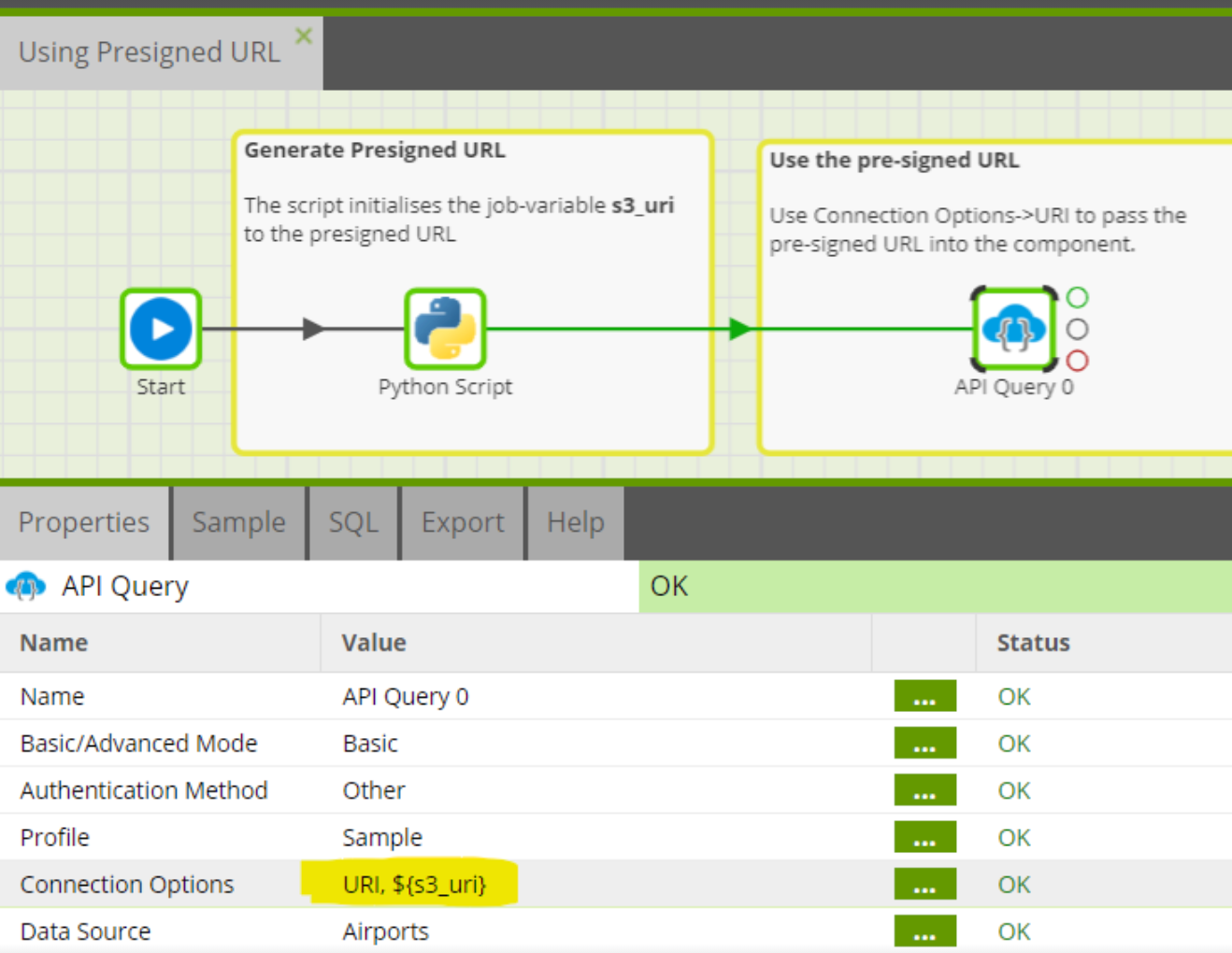
- Set the Connection Options property in the API Query component to pass the variable
s3_urias a parameter, as shown in the image below.
Sample output🔗
File in S3:
s3://mtln-public-data/Samples/airports.json
Pre-signed URL:
https://mtln-public-data.s3.amazonaws.com/Samples/airports.json?AWSAccessKeyId=AKIAJSVY7VZTAUN42OMQ&Expires=1499951483&Signature=uBh3ozU8Z4pI%2B8BM3CcE29xqH%2FY%3D