Microsoft Entra ID and SAML🔗
Note
This document covers step two of the Single sign-on (SSO) setup process, and shouldn't be completed independently.
-
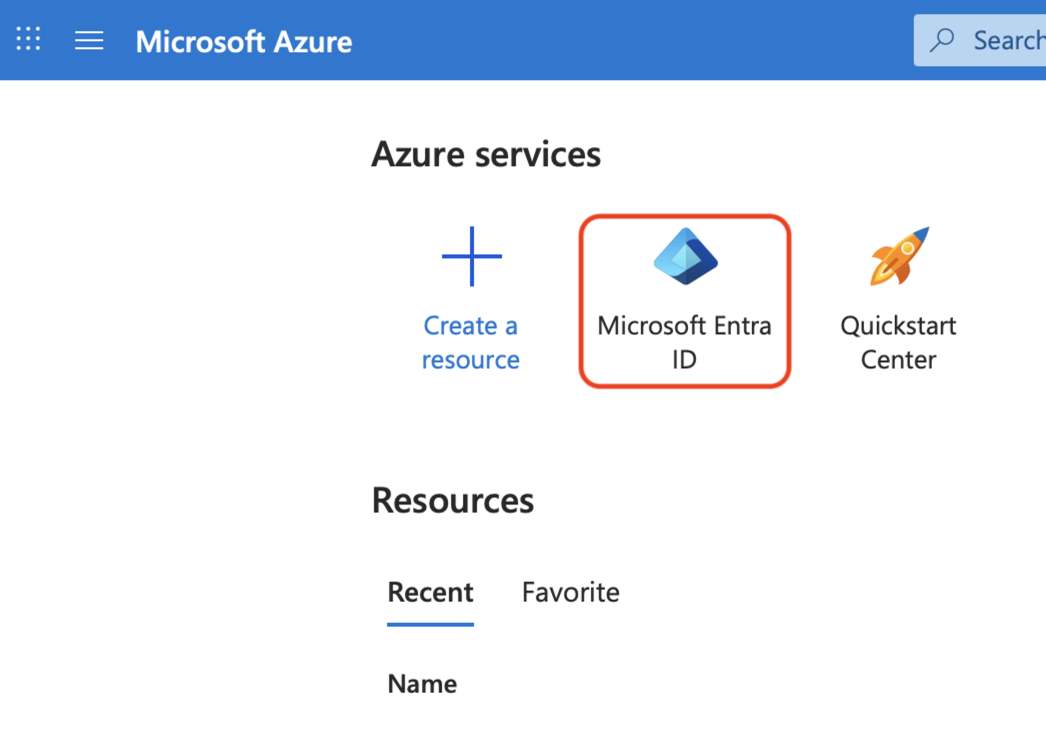
Log in to the Microsoft Azure portal, and click Microsoft Entra ID.
-
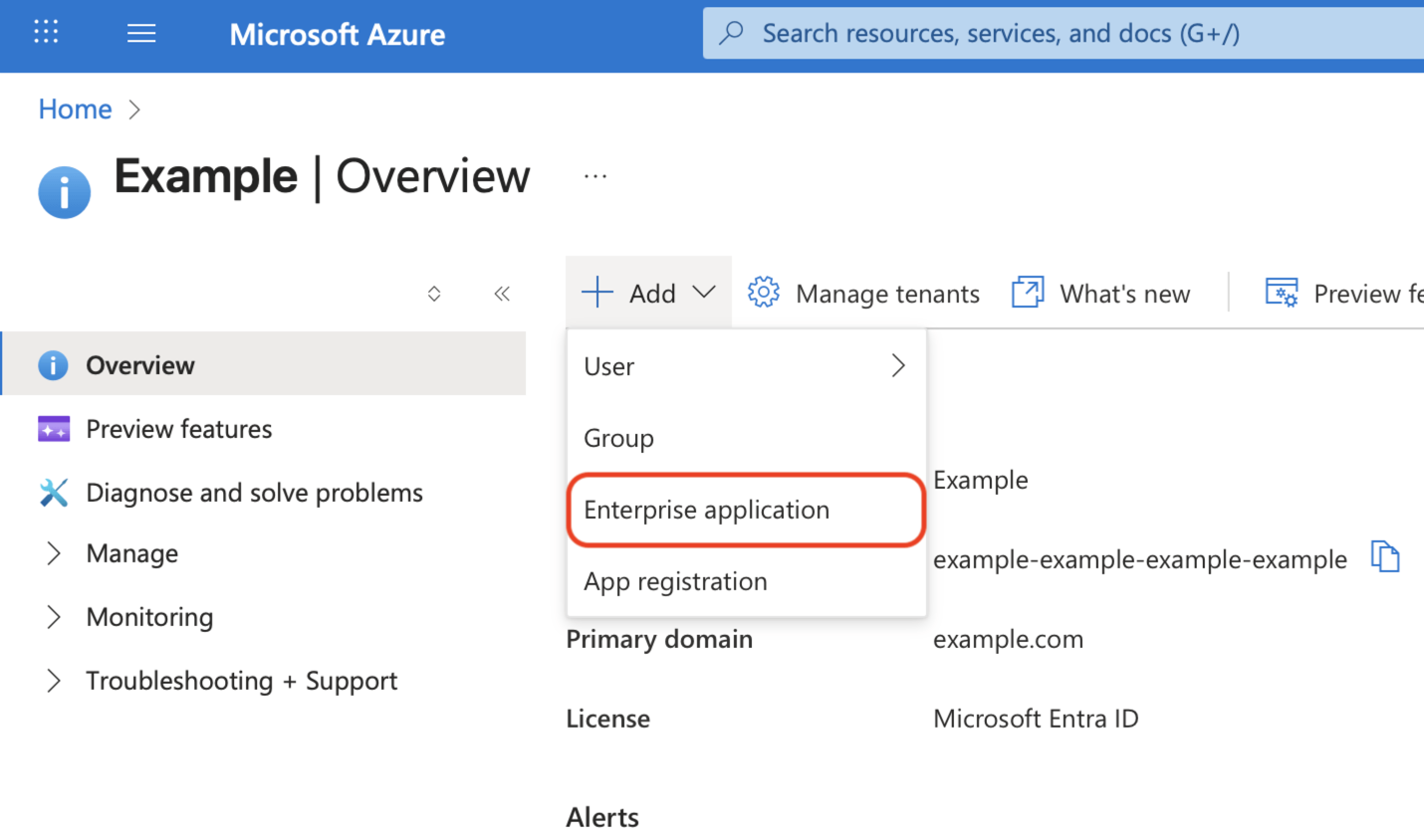
At the top of the Overview page, click the Add menu, and select Enterprise application.
-
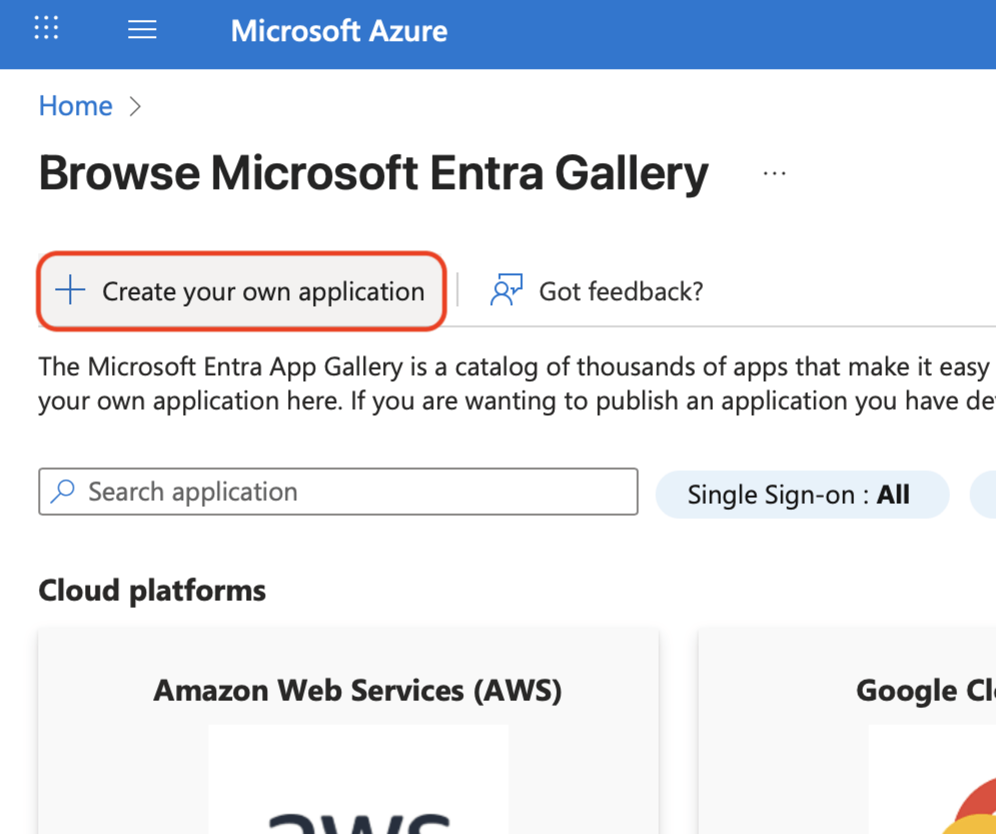
At the top of Browse Microsoft Entra Gallery, click Create your own application.
-
Enter a name for the application, such as
Matillion, and select the Integrate any other application you don't find in the gallery (Non-gallery) radio button.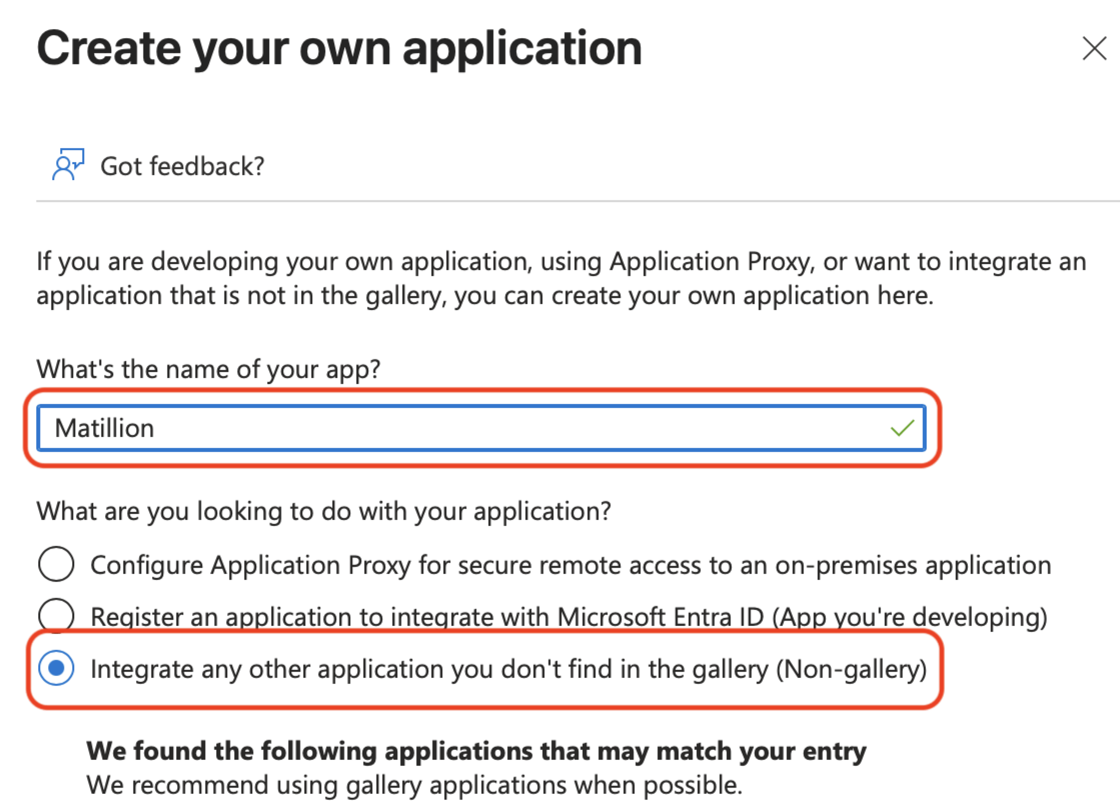
-
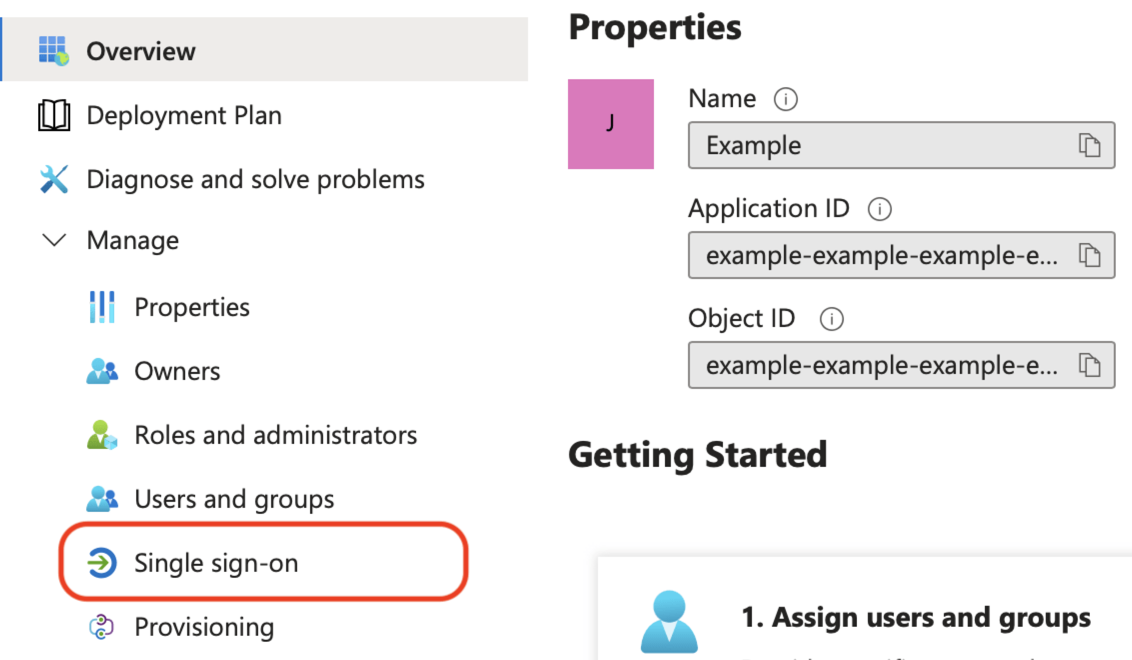
Expand the Manage section on the left, and click Single sign-on.
-
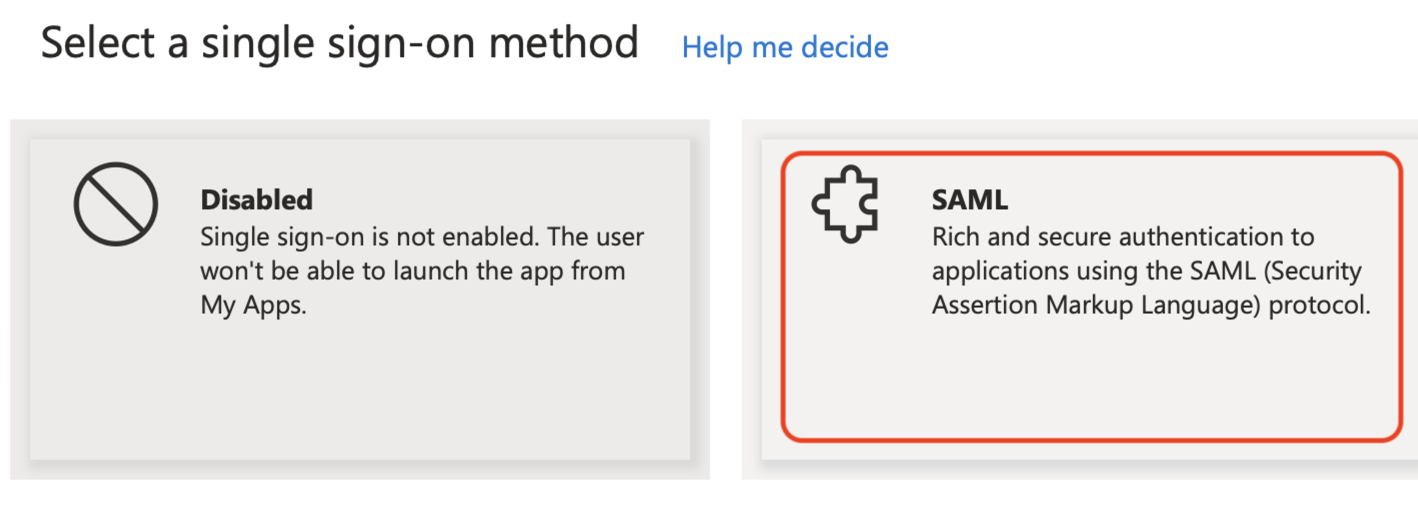
Click the SAML tile to select SAML as the single sign-on method.
-
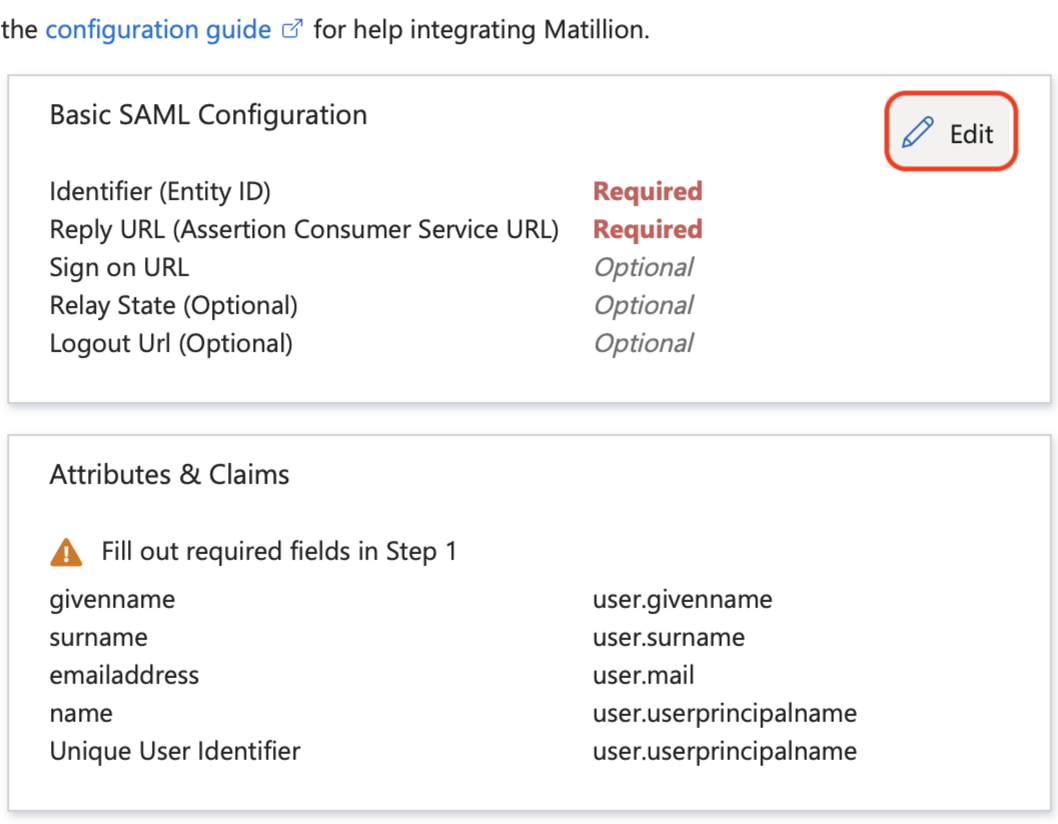
Click the Edit button on the Basic SAML Configuration card.
-
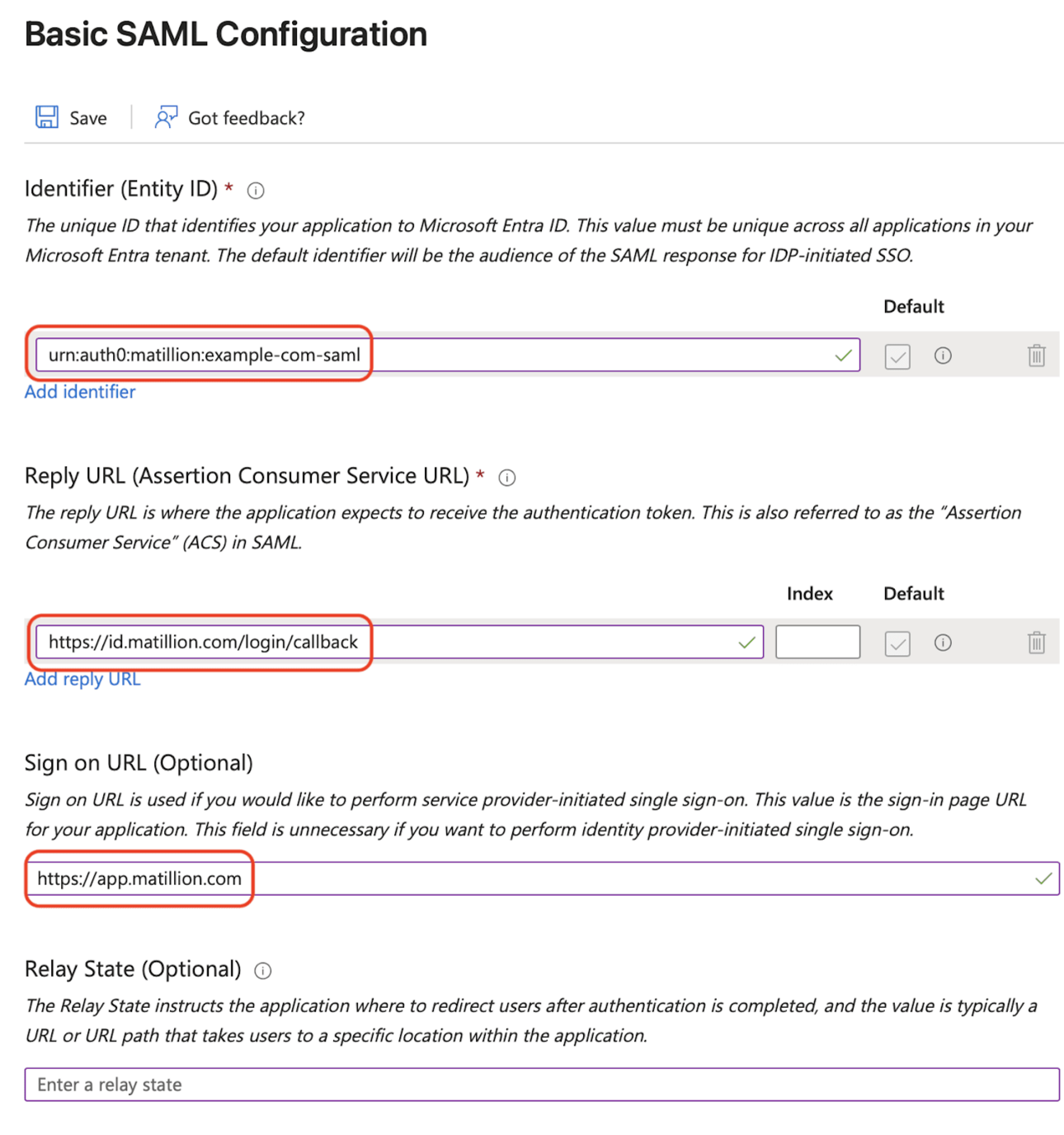
Enter the following, and click Save:
- Identifier:
urn:auth0:matillion:[domain]-samlreplacing[domain]with your primary email domain, and converting any special characters to dashes. For instanceexample.comwould becomeurn:auth0:matillion:example-com-saml. - Reply URL:
https://id.matillion.com/login/callback. - Sign on URL:
https://app.matillion.com.
Note
The Relay State will be provided by Matillion later, and will be added here before testing. No other configuration should be changed at that stage.
- Identifier:
-
Click the Edit button on the User Attributes & Claims card.
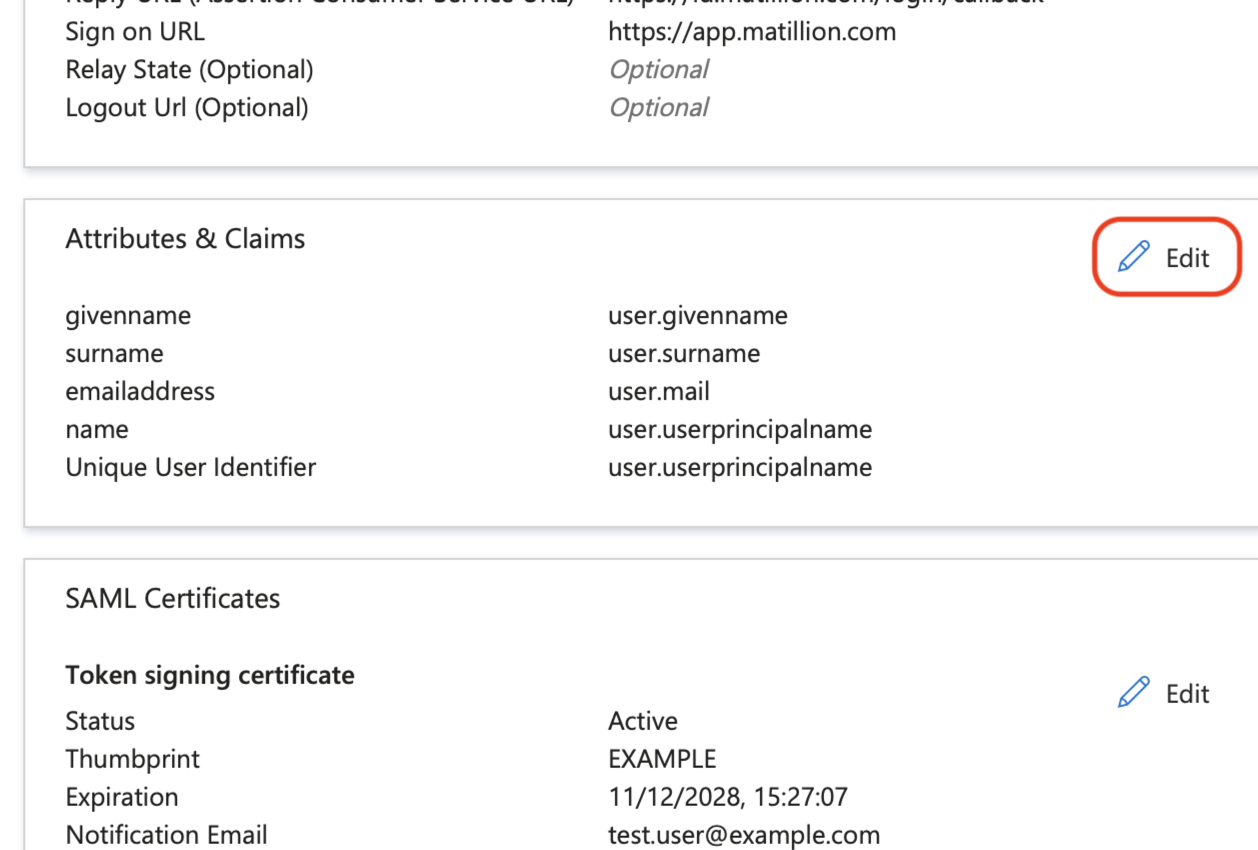
-
Under Claim name, click anywhere in the Unique User Identifier (Name ID) row, except the … menu, to edit it.
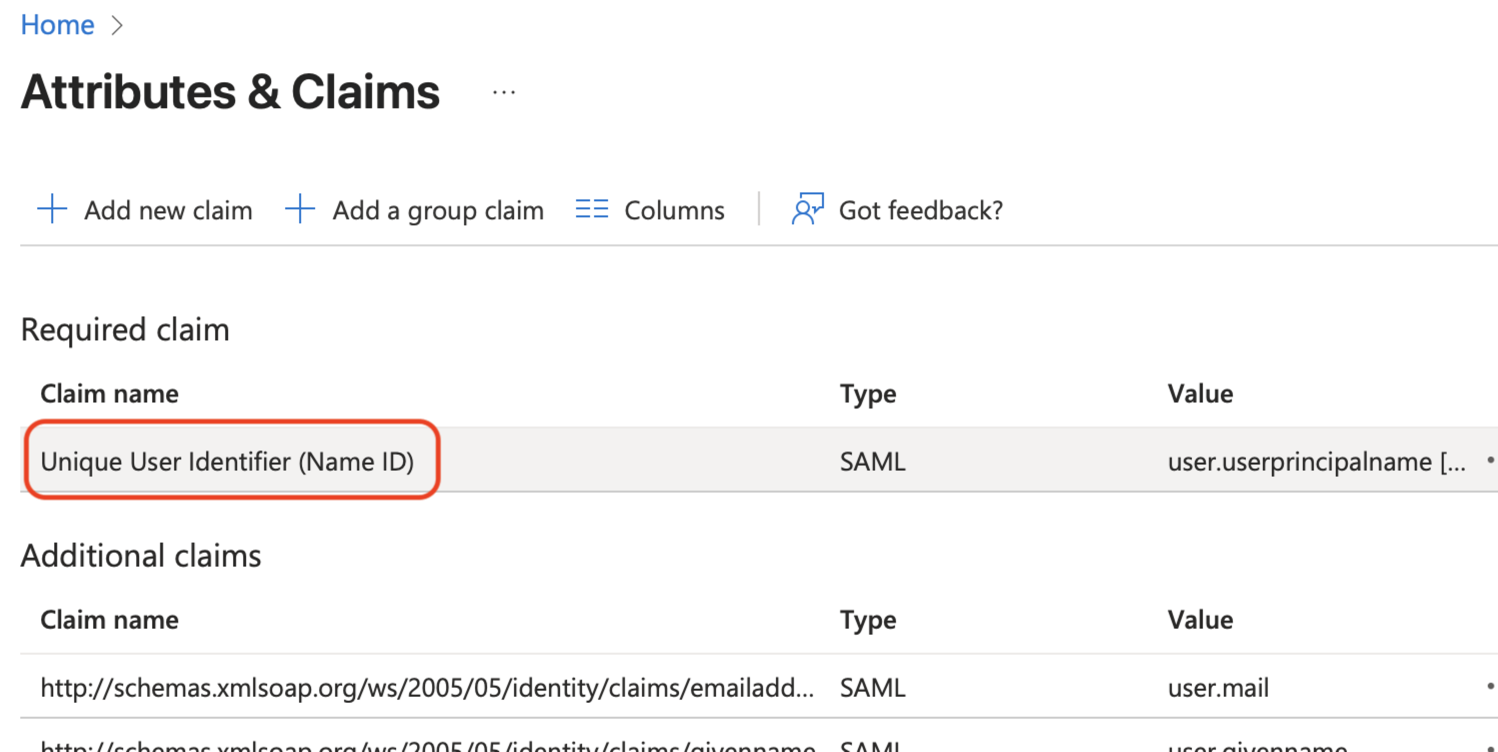
-
Change the claim to something unique and immutable for each user, such as user.employeeid, and click Save.
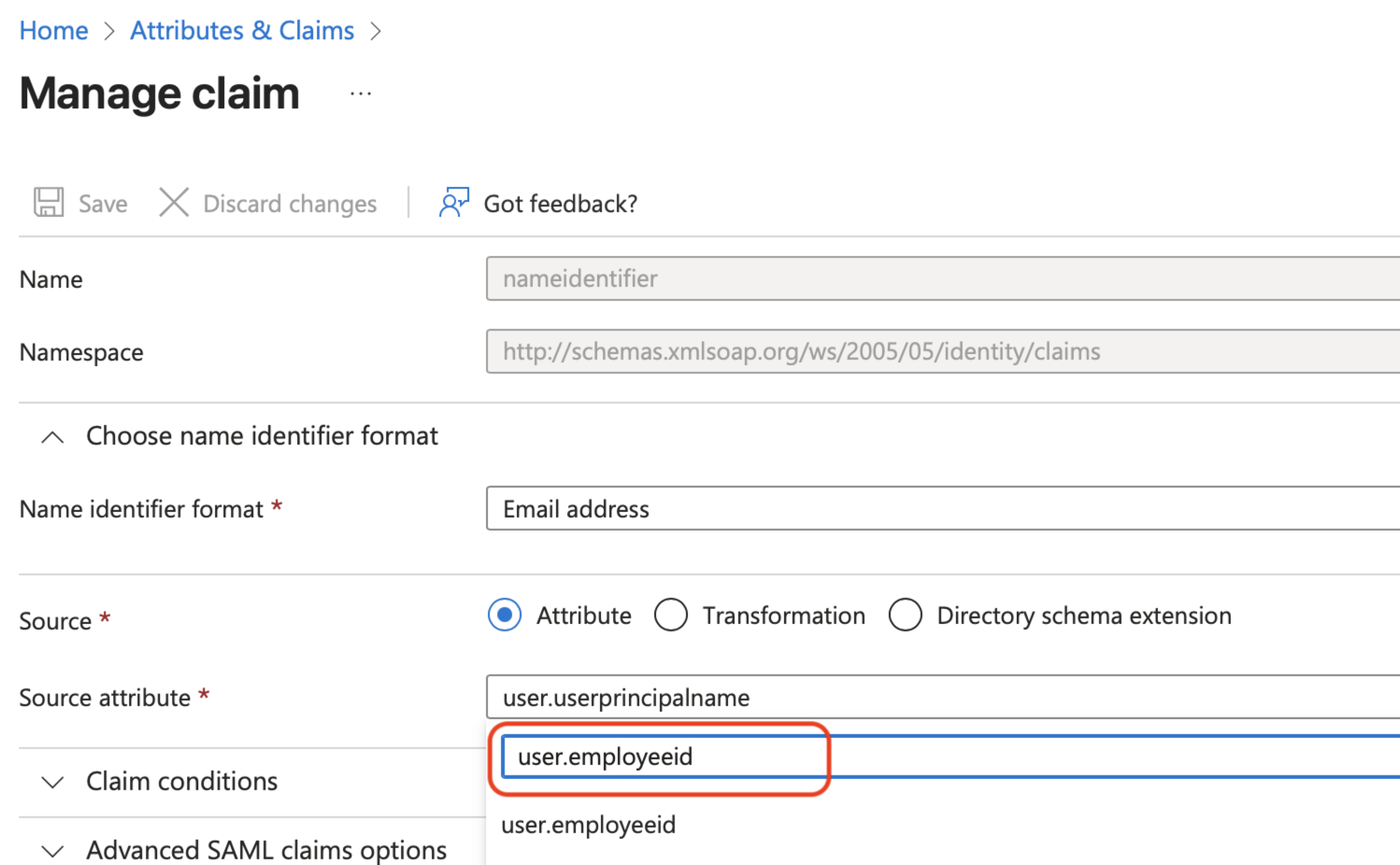
Warning
The default value,
user.principalname, is typically an email address and shouldn't be used. The value selected here is used internally by the identity provider (as the sub claim) to uniquely identify users. It's never visible in either system, and regardless of this setting, users will always sign in using their email address.Leaving the default value in place can cause issues if it changes in the future. In that case, Matillion would treat the user as a new account, resulting in the loss of the original user profile.
Any value that is both unique to each user and guaranteed not to change can be used. Because each setup is different, Matillion cannot provide guidance on creating a unique claim in Entra ID. However, the exact value being sent can be verified during the testing phase, before the configuration is activated and affects user logins.
-
At the top of Attributes & Claims, click Add new claim.
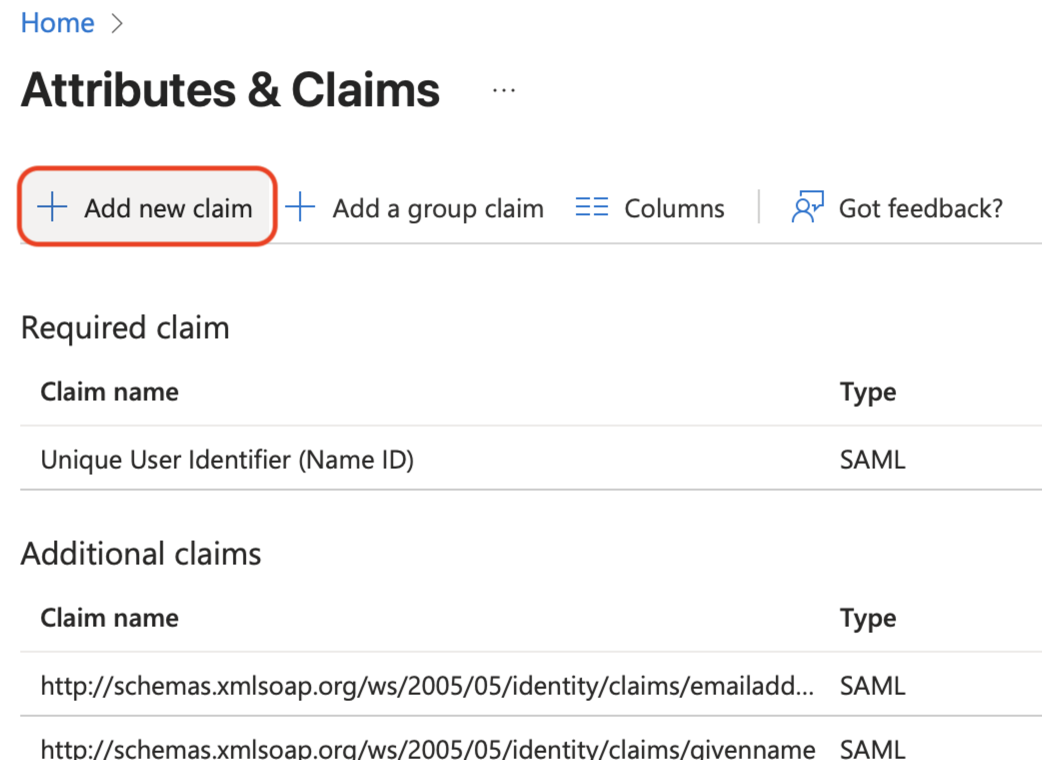
-
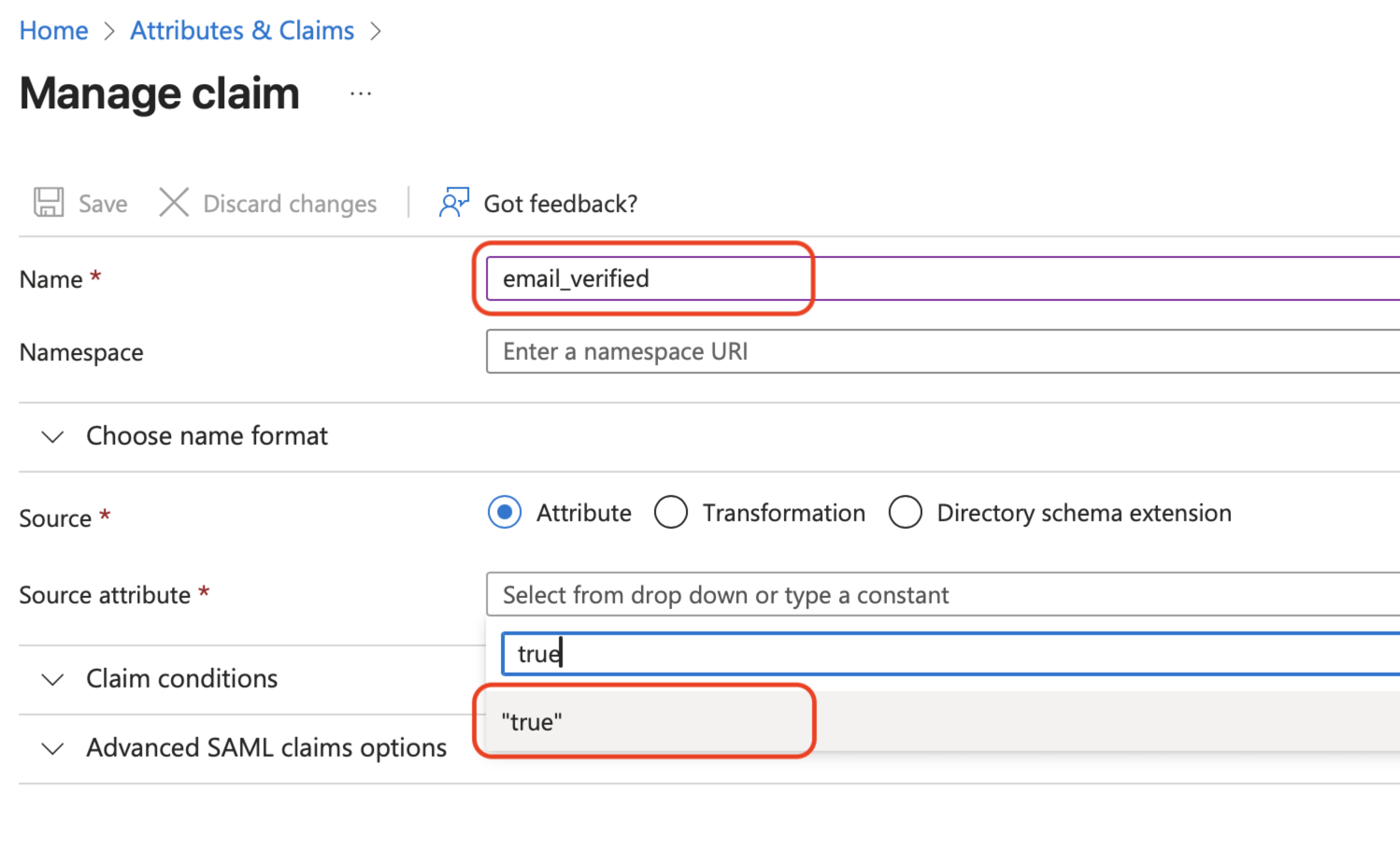
Set the Name of the claim to email_verified, type the word "true" in the Source attribute box, and then select true from the drop-down, and then click Save. This ensures that users aren't prompted to verify their email address with Matillion.
-
Click the browser back button twice to return to the Single sign-on page.
-
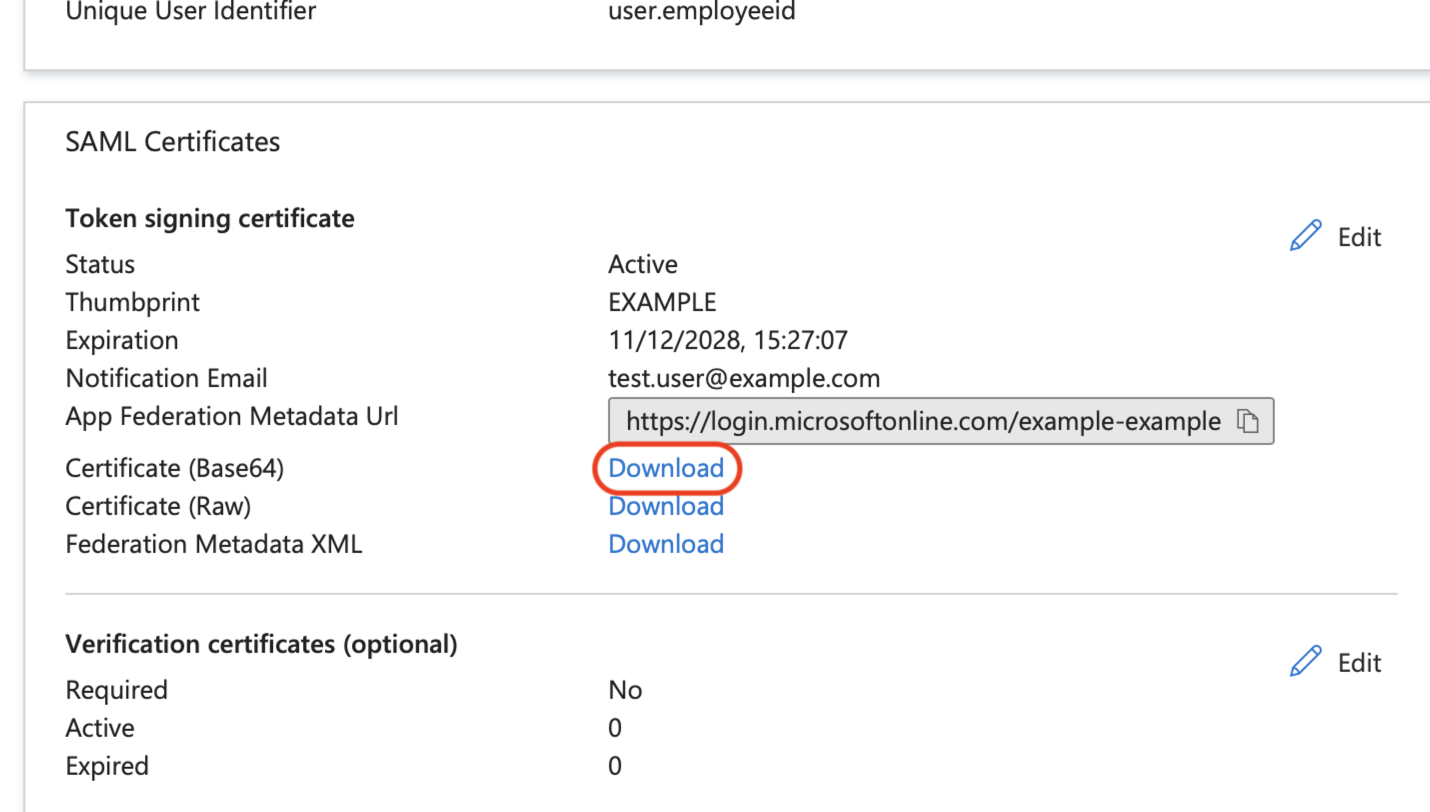
Click Download on the Certificate (Base64) row of the SAML Certificates card, and save it somewhere you can refer to later.
-
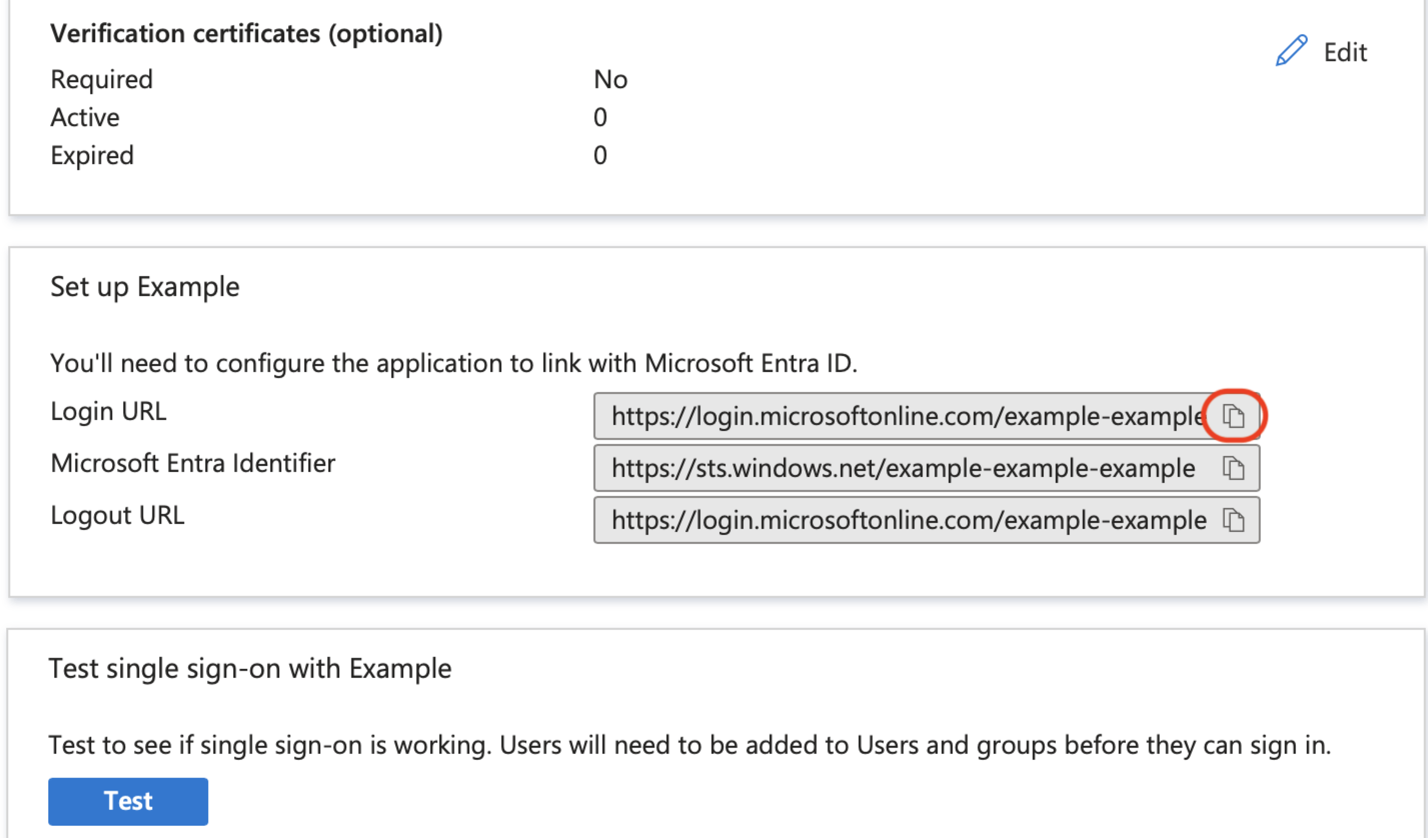
Copy and make a note of the Login URL from the Set up [Application name] card.
-
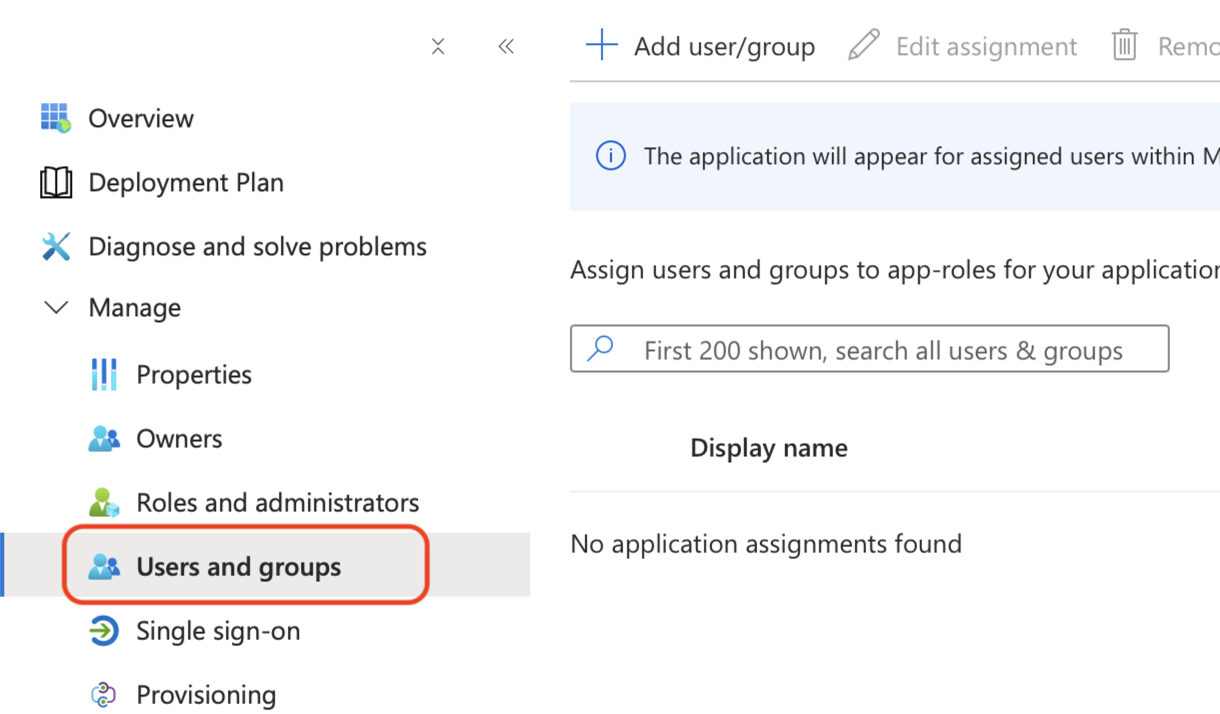
Select User and groups from the menu on the left, and at the top, click Add user/group.
-
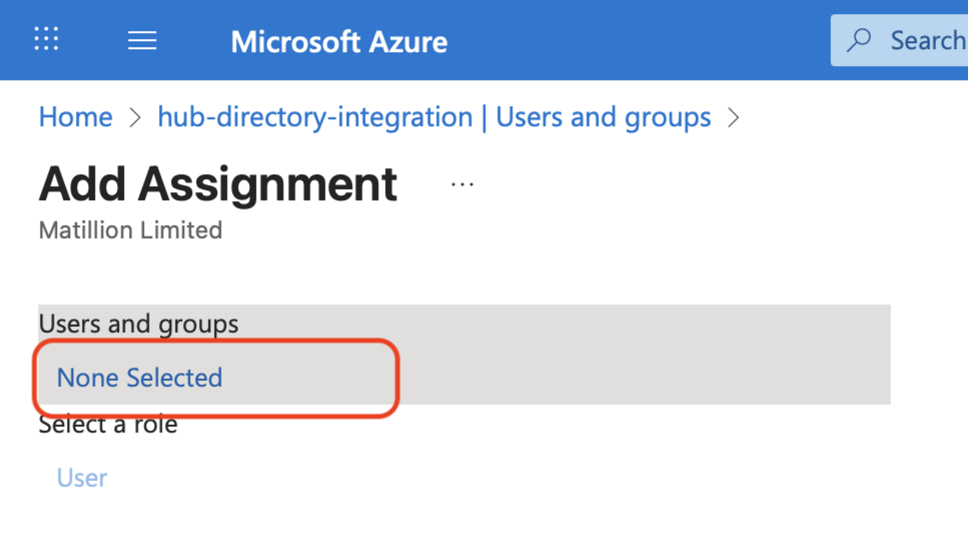
Click None selected in the Users and groups section.
-
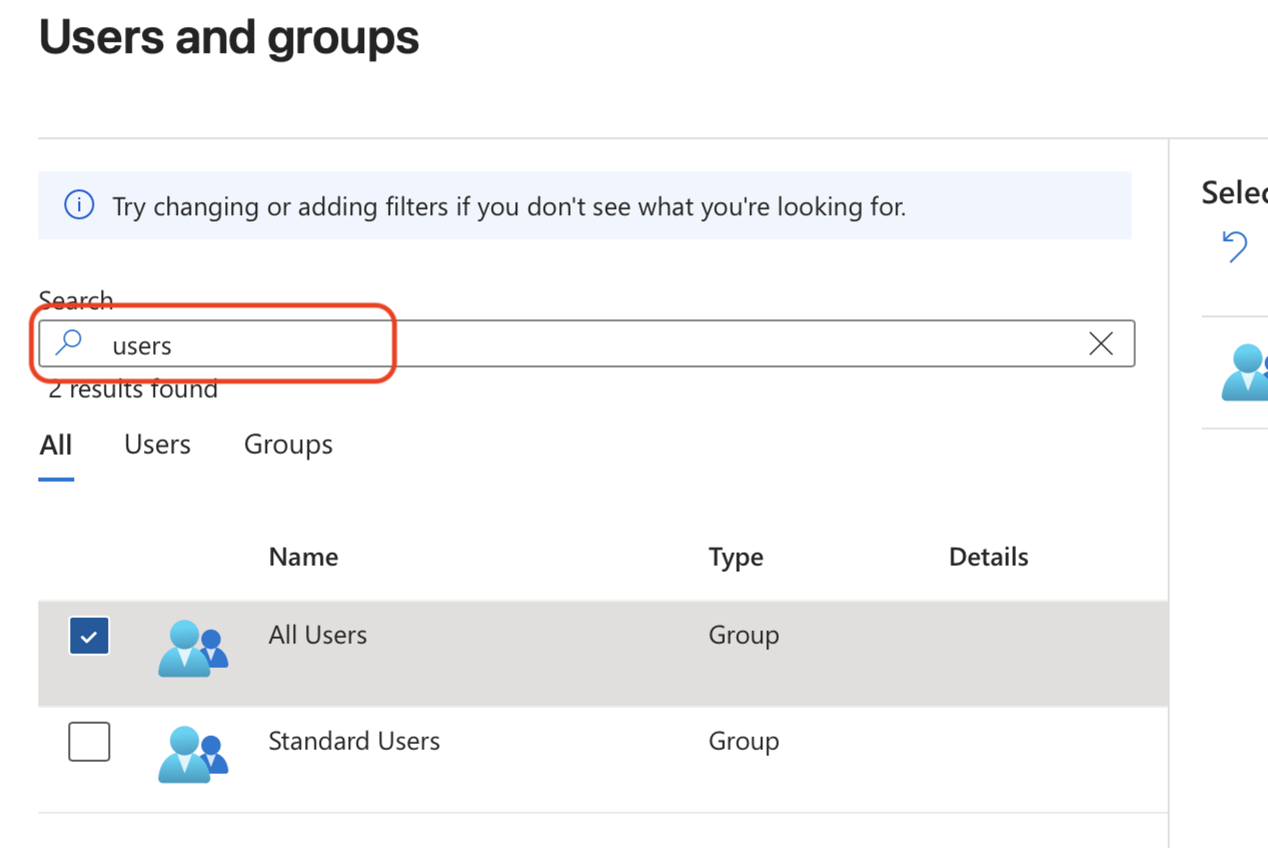
Search for and add the users and groups that you want to allow to sign in to Matillion.
-
Continue the steps in Single sign-on (SSO) setup.