CDC agent setup UI🔗
To run a CDC pipeline, you need to create a CDC agent container. The Matillion CDC agent is provided as a container image. This image must be deployed and configured within your organization's private cloud or on-premise technology stack, and will require access to the source database, the target cloud data lake, and either AWS Secrets Manager, Azure Key Vault, or Google Secret Manager.
Prerequisites🔗
- Matillion recommends you set up your database infrastructure for CDC before proceeding with CDC agent installation instructions.
- Ensure you have the required database authority and privileges to manage datastores.
- If you aren't a database administrator, contact your system administrator to request access to create a stack in your infrastructure environment.
Create a CDC agent🔗
Follow these quick guides to create a CDC agent container through Data Loader, and deploy your chosen CDC agent in its respective console:
- Quick guide for deploying a CDC agent in AWS
- Quick guide for deploying a CDC agent in Azure
- Quick guide for deploying a CDC agent in GCP
Note
- The CDC agent requires direct access to the Matillion CDC servers for control and management.
- When creating a new CDC agent through Data Loader, an identity value (
ID_Agent) will have been automatically generated along with installation instructions. TheID_AGENTand yourID_ORGANIZATIONwill need to be provided as environment variables when deploying the CDC agent. - Access to the appropriate secrets management service will need to be granted to the identity the CDC agent container is using. This is typically achieved through IAM roles, depending on your cloud provider.
- The Matillion CDC agent expects to find your platform secret in either Azure Key Vault or AWS Secrets Manager, depending on where the CDC agent is installed. For more information, refer to Platform Keys.
Once you have successfully created a CDC agent container, click Return to agent list. Locate your new CDC agent in the list and ensure the Agent status is Connected. You can now add a pipeline to the CDC agent.
Note
You can delete a CDC agent from the agent list at any time, but you must also delete the corresponding container from your infrastructure.
CDC agent dashboard🔗
When you click the Agents icon, far-left in Data Loader, the Agent containers page will be displayed. You can view the list of CDC agents you have created. Refer to the image and descriptions below to familiarize yourself with the components of the CDC agent list view.
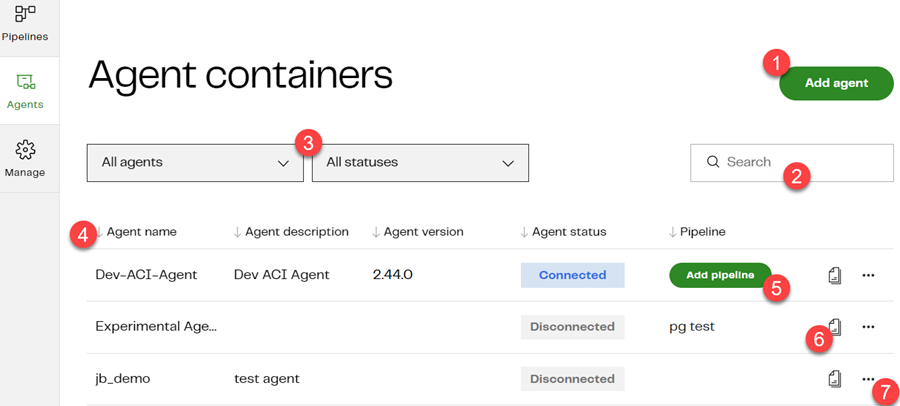
The following table describes each of these components:
| Page component | Title | Description |
|---|---|---|
| 1 | Add agent | Click to create a new CDC agent. |
| 2 | Search | Search for CDC agents by typing a partial or complete name of the CDC agent. |
| 3 | Filter | Filter the list of CDC agents by Pipeline status (in the first drop-down) and Agent status (in the second drop-down). The default is to list all CDC agents. |
| 4 | Agent List | Displays the list of CDC agents created by the current user. You can sort the list by any column by clicking the arrows in the column header (the default is sorted by Agent name), and filter by using the Search and Filter fields above the list. |
| 5 | Add pipeline | Any CDC agent with a status of Connected which does not have a pipeline assigned will display the Add pipeline button. Click to add a pipeline to the CDC agent. Read CDC Pipelines for details. |
| 6 | Agent setup | Click this icon to go through the CDC agent setup process described in Create a CDC agent, above. |
| 7 | More actions | Click the three dots ... to see other actions you can perform on the CDC agent. Edit Agent allows you to change the CDC agent's name and description. Remove Agent deletes the CDC agent from the list but doesn't delete the corresponding container from your infrastructure. See note above. |
CDC agent status🔗
Every CDC agent will have one of these statuses:
- Disconnected: The CDC agent is not connected to Matillion's servers. You won't be able to add a pipeline to the CDC agent, and any existing pipeline will not run.
- Connected: The CDC agent is connected to Matillion's servers. A pipeline can be added and will operate normally.