Test the connection🔗
Note
This document covers step four of the Single sign-on (SSO) setup process, and shouldn't be completed independently.
Once the configuration has been completed by Matillion, we will provide you with a Relay State URL. Before testing, add this to your application as noted in the original application setup process.
To test the connection follow these steps:
- Visit https://sso-check.matillion.com, and click Log in.
- Enter your email address, and click Log In.
-
If the general configuration is correct, you'll see a page like this:
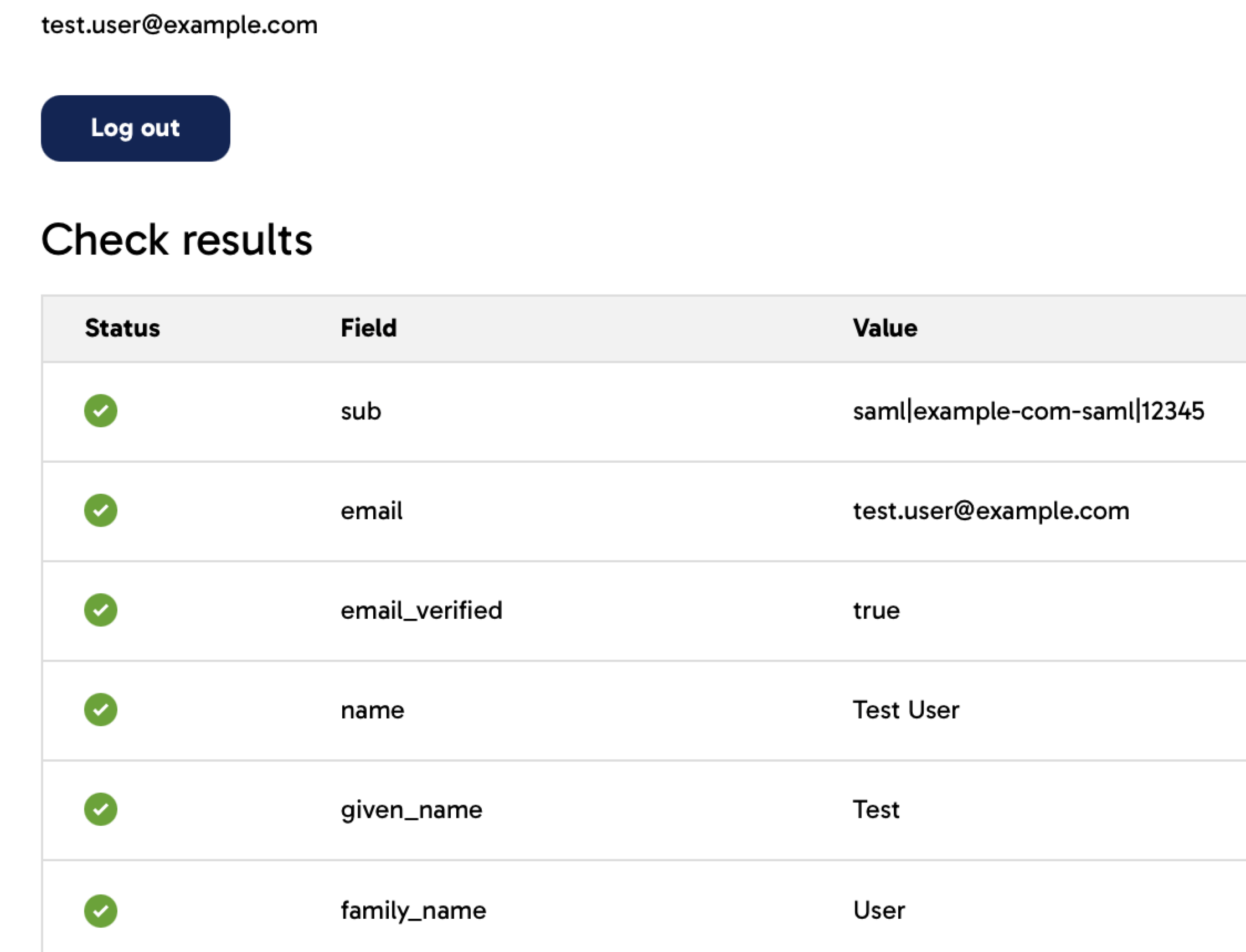
- If all six checkboxes on the left are green, continue to step five of the main process.
- If errors appear in the Value column, update the attributes or claims configured in your application to resolve them, then log out and back in after each change to re-test.
-
If the screen above doesn't appear and you instead encounter an error, there is likely a broader issue with your application's configuration. Use the error message and your identity provider logs to identify the cause. After making any changes, log out and back in to retest.
If you can't determine the cause after investigation, please include a screenshot of the error and the error URL in your support ticket so a member of the team can attempt to assist you.